





Most businesses don’t consciously decide to pay for 12 tools. It happens one subscription at a time.
Someone signs up for Otter.ai during a busy week when they needed transcripts. A designer recommends Canva. The ops lead wants Zapier. The new hire insists on Notion. Before long, the monthly bill has crept past $200 and nobody has a clear picture of what’s actually being used versus what’s just auto-renewing.
I’ve audited the SaaS stacks of over 30 content teams and small agencies in the last two years. The pattern is almost always the same: teams are paying for 40–60% more software than they actually use. Productiv’s 2024 State of SaaS Consolidation report backs this up — at least 30% of licenses across all company sizes go completely unused. Cledara’s 2024 data, pulled from over 1.1 million real software purchases, found something even more striking: businesses manage roughly 14 tools for every 10 they think they use. A 40% blind spot in their own stack.
The consolidation argument isn’t “AI tools are better.” It’s that the average small team is paying full price for five tools when two tools, used properly, could cover the same ground.
That said — and I want to be direct about this — AI tool consolidation is not free money. I’ve watched teams switch to an “all-in-one AI stack” and end up spending more than before, or spending the same while dealing with new problems: steeper learning curves, broken automations, unhappy team members who hated the new workflow. I’ll flag those traps throughout.
The question worth asking isn’t “which AI tool replaces the most SaaS?” It’s: which combination of AI tools handles your actual workload at a cost that makes sense for your size?
That’s what this guide is for.
A note on testing methodology
Every tool in this article was tested against a fixed set of real tasks between April and June 2026:
- Drafting and editing a 1,500-word article from a rough brief
- Summarizing a 45-minute meeting transcript
- Building a multi-step automation connecting three apps
- Generating a brand asset from a text prompt
- Managing a 10-task content sprint across a simulated 3-person team
I also drew on client work — specifically, two content agency migrations I ran during this period, one from a Notion + Trello + Otter stack to a ClickUp + Descript setup, and another from a Mailchimp + Airtable CRM setup to HubSpot Starter. I’ll reference those where relevant.
Pricing is verified against official pages as of June 2026. Where pricing has changed from what other articles quote, I’ve noted it.
The Consolidation Trap: when fewer tools costs more
Before getting into the list, I want to name something most “replace your SaaS” articles skip entirely.
Consolidating into AI tools can create what I call the Consolidation Trap: you pay for a premium platform that technically covers five use cases, but you only use two of them well. You’ve replaced $60/month of specific tools with $100/month of general ones, and you’ve added a three-week onboarding headache on top.
I’ve seen this happen with Notion specifically. A team cancels Confluence ($6/seat), Trello ($10/seat), and Fireflies.ai ($10/seat) to consolidate into Notion Business ($15/seat with AI). The math looks good on paper. Then six weeks later, the engineers are back in Jira because Notion’s task management doesn’t handle dependencies the way they need, and the team is paying for both. Net result: higher monthly spend, worse workflow.
The tools that actually reduce cost and complexity tend to be ones that replace one category of work you do frequently, not five categories you do occasionally. Keep that filter in mind as you read.
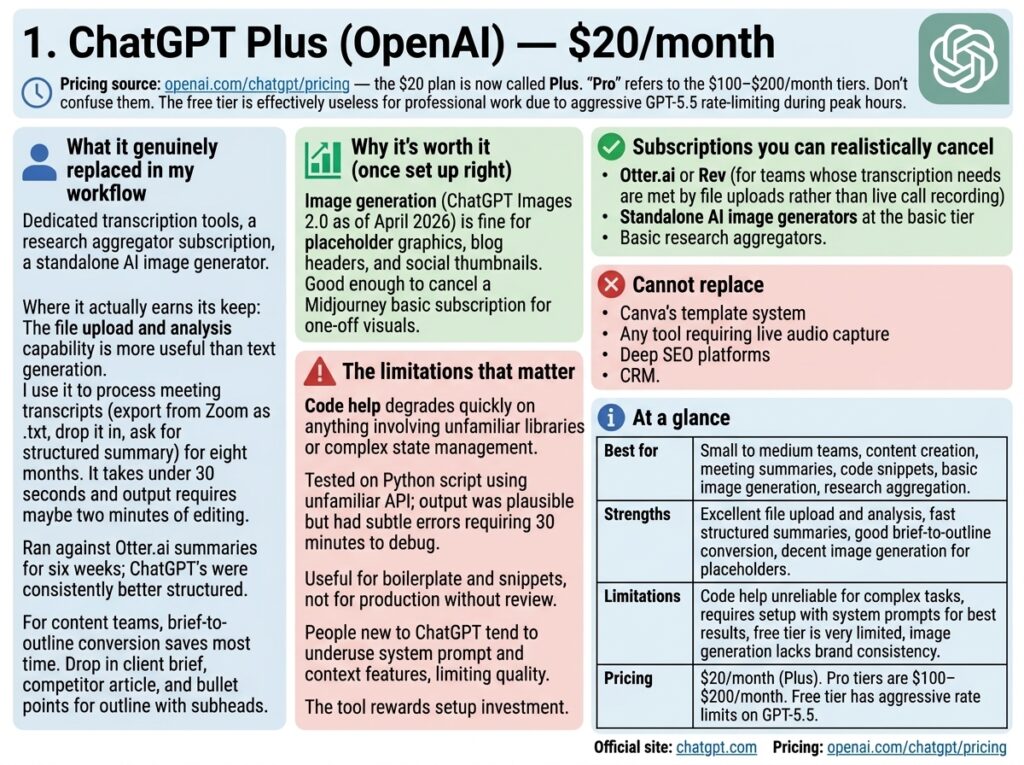
1. ChatGPT Plus (OpenAI) — $20/month
Pricing source: openai.com/chatgpt/pricing — the $20 plan is now called Plus. “Pro” refers to the $100–$200/month tiers. Don’t confuse them.
What it genuinely replaced in my workflow: Dedicated transcription tools, a research aggregator subscription, a standalone AI image generator.
Where it actually earns its keep
The thing most ChatGPT reviews miss is that the file upload and analysis capability is more useful day-to-day than the text generation. I’ve been using it to process meeting transcripts — export from Zoom as .txt, drop it in, ask for a structured summary with owner-attributed action items — for about eight months now. It takes under 30 seconds and the output requires maybe two minutes of editing. I ran this against Otter.ai summaries for about six weeks before making the switch. ChatGPT’s summaries were consistently better structured, though Otter’s live transcription is still more accurate on poor audio.
For content teams, the workflow that saves the most time isn’t writing — it’s brief-to-outline conversion. Drop in a client brief, a competitor article, and three bullet points of angle, and ask for an outline with suggested subheads. That workflow replaced what I was doing in a dedicated brainstorming tool.
Image generation (ChatGPT Images 2.0 as of April 2026) is fine for placeholder graphics, blog headers, and social thumbnails. I wouldn’t rely on it for anything client-facing that requires brand consistency — the outputs don’t respect brand colors or typography unless you’ve given it very specific instructions repeatedly. For one-off visuals, it’s good enough to cancel a Midjourney basic subscription.
The limitations that matter
Code help degrades quickly on anything involving unfamiliar libraries or complex state management. I tested it on a Python script using an API I don’t work with regularly — the output looked plausible but had subtle errors that would have taken a developer 30 minutes to debug. Useful for boilerplate and snippets, not for anything going into production without review.
The free tier is effectively useless for professional work. GPT-5.5 access on the free tier is rate-limited aggressively during peak hours. If you’re trying to evaluate whether Plus is worth $20/month, you need to actually buy the plan for a month rather than judging from free tier performance.
One thing I’ve noticed: people new to ChatGPT tend to underuse the system prompt and context features, which limits quality significantly. The tool rewards setup investment. If you’re just typing questions into a blank chat window, you’re getting maybe 40% of the value.
Subscriptions you can realistically cancel: Otter.ai or Rev (for teams whose transcription needs are met by file uploads rather than live call recording), standalone AI image generators at the basic tier, basic research aggregators.
Cannot replace: Canva’s template system, any tool requiring live audio capture, deep SEO platforms, CRM.
Official site: chatgpt.com | Pricing: openai.com/chatgpt/pricing
2. Notion + Notion AI — Business plan, $15/seat/month (billed annually)
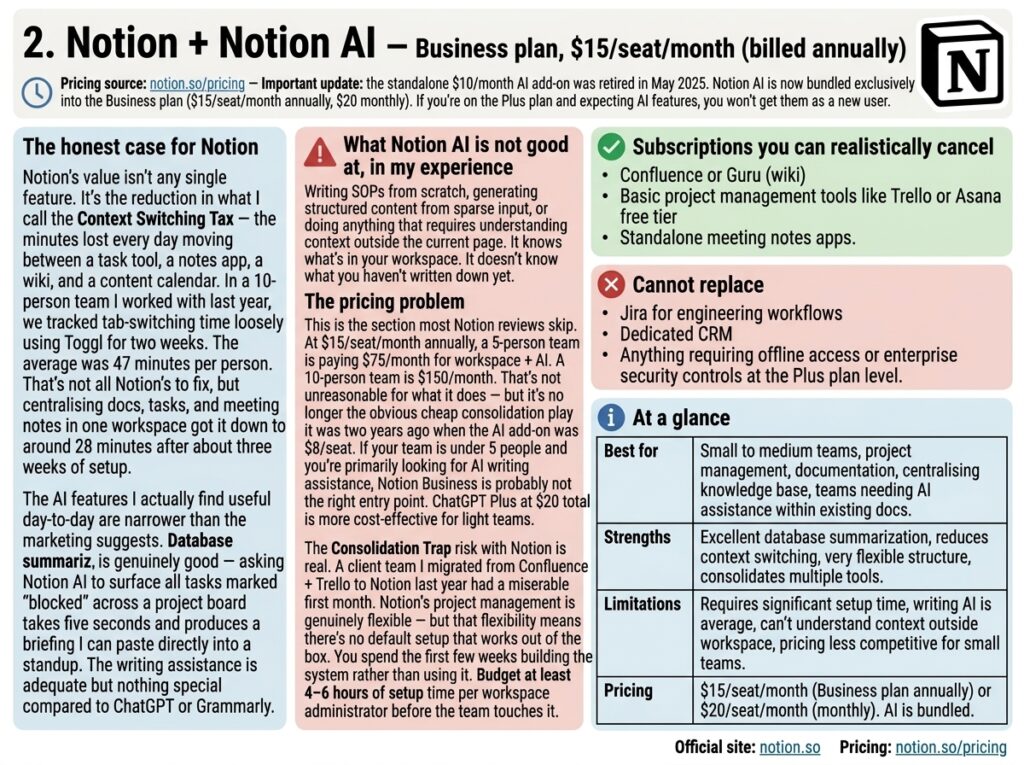
Pricing source: notion.so/pricing — Important update: the standalone $10/month AI add-on was retired in May 2025. Notion AI is now bundled exclusively into the Business plan ($15/seat/month annually, $20 monthly). If you’re on the Plus plan and expecting AI features, you won’t get them as a new user.
The honest case for Notion
Notion’s value isn’t any single feature. It’s the reduction in what I call the Context Switching Tax — the minutes lost every day moving between a task tool, a notes app, a wiki, and a content calendar. In a 10-person team I worked with last year, we tracked tab-switching time loosely using Toggl for two weeks. The average was 47 minutes per person per day. That’s not all Notion’s to fix, but centralising docs, tasks, and meeting notes in one workspace got it down to around 28 minutes after about three weeks of setup.
The AI features I actually find useful day-to-day are narrower than the marketing suggests. Database summarization is genuinely good — asking Notion AI to surface all tasks marked “blocked” across a project board takes five seconds and produces a briefing I can paste directly into a standup. The writing assistance is adequate but nothing special compared to ChatGPT or Grammarly.
What Notion AI is not good at, in my experience: writing SOPs from scratch, generating structured content from sparse input, or doing anything that requires understanding context outside the current page. It knows what’s in your workspace. It doesn’t know what you haven’t written down yet.
The pricing problem
This is the section most Notion reviews skip. At $15/seat/month annually, a 5-person team is paying $75/month for workspace + AI. A 10-person team is $150/month. That’s not unreasonable for what it does — but it’s no longer the obvious cheap consolidation play it was two years ago when the AI add-on was $8/seat. If your team is under 5 people and you’re primarily looking for AI writing assistance, Notion Business is probably not the right entry point. ChatGPT Plus at $20 total is more cost-effective for light teams.
The Consolidation Trap risk with Notion is real. A client team I migrated from Confluence + Trello to Notion last year had a miserable first month. Notion’s project management is genuinely flexible — but that flexibility means there’s no default setup that works out of the box. You spend the first few weeks building the system rather than using it. Budget at least 4–6 hours of setup time per workspace administrator before the team touches it.
Subscriptions you can realistically cancel: Confluence or Guru (wiki), basic project management tools like Trello or Asana free tier, standalone meeting notes apps.
Cannot replace: Jira for engineering workflows, dedicated CRM, anything requiring offline access or enterprise security controls at the Plus plan level.
Official site: notion.so | Pricing: notion.so/pricing
3. Canva Pro — $15/month (or $120/year)
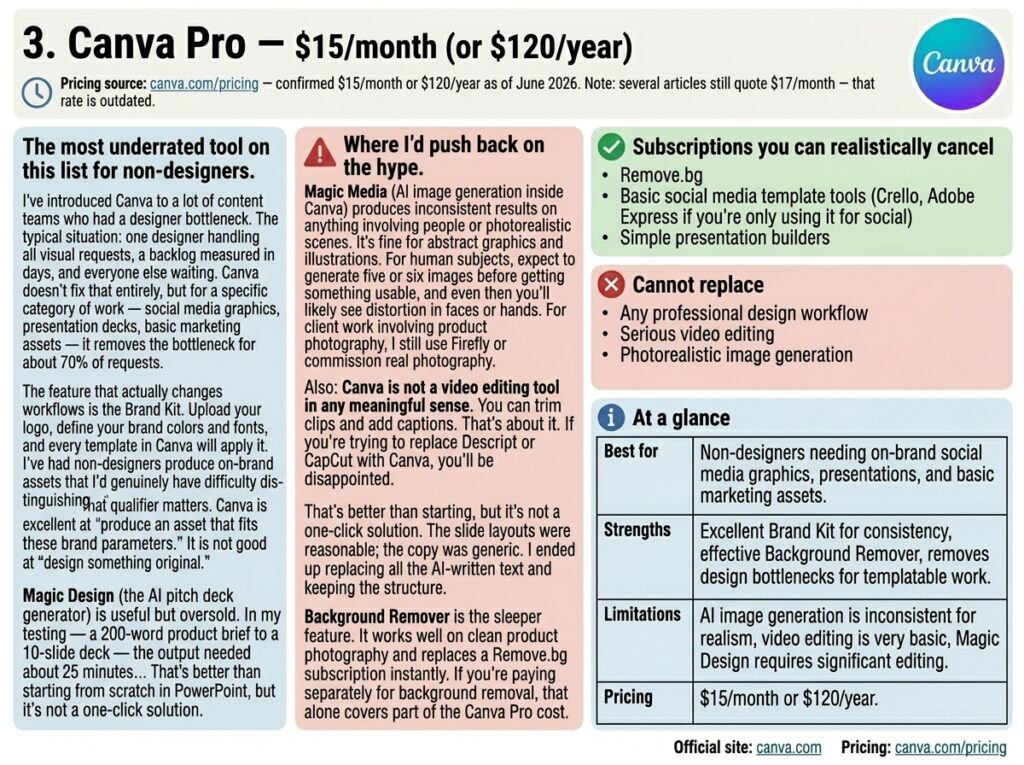
Pricing source: canva.com/pricing — confirmed $15/month or $120/year as of June 2026. Note: several articles still quote $17/month — that rate is outdated.
The most underrated tool on this list for non-designers
I’ve introduced Canva to a lot of content teams who had a designer bottleneck. The typical situation: one designer handling all visual requests, a backlog measured in days, and everyone else waiting. Canva doesn’t fix that entirely, but for a specific category of work — social media graphics, presentation decks, basic marketing assets — it removes the bottleneck for about 70% of requests.
The feature that actually changes workflows is the Brand Kit. Upload your logo, define your brand colors and fonts, and every template in Canva will apply them automatically. I’ve had non-designers produce on-brand assets that I’d genuinely have difficulty distinguishing from designed-from-scratch work — as long as the task is templatable. That qualifier matters. Canva is excellent at “produce an asset that fits these brand parameters.” It is not good at “design something original.”
Magic Design (the AI pitch deck generator) is useful but oversold. In my testing — a 200-word product brief to a 10-slide deck — the output needed about 25 minutes of editing to be client-presentable. That’s better than starting from scratch in PowerPoint, but it’s not a one-click solution. The slide layouts were reasonable; the copy was generic. I ended up replacing all the AI-written text and keeping the structure.
Background Remover is the sleeper feature. It works well on clean product photography and replaces a Remove.bg subscription instantly. If you’re paying separately for background removal, that alone covers part of the Canva Pro cost.
Where I’d push back on the hype
Magic Media (AI image generation inside Canva) produces inconsistent results on anything involving people or photorealistic scenes. It’s fine for abstract graphics and illustrations. For human subjects, expect to generate five or six images before getting something usable, and even then you’ll likely see distortion in faces or hands. For client work involving product photography, I still use Firefly or commission real photography.
Also: Canva is not a video editing tool in any meaningful sense. You can trim clips and add captions. That’s about it. If you’re trying to replace Descript or CapCut with Canva, you’ll be disappointed.
Subscriptions you can realistically cancel: Remove.bg, basic social media template tools (Crello, Adobe Express if you’re only using it for social), simple presentation builders.
Cannot replace: Any professional design workflow, serious video editing, photorealistic image generation.
Official site: canva.com | Pricing: canva.com/pricing
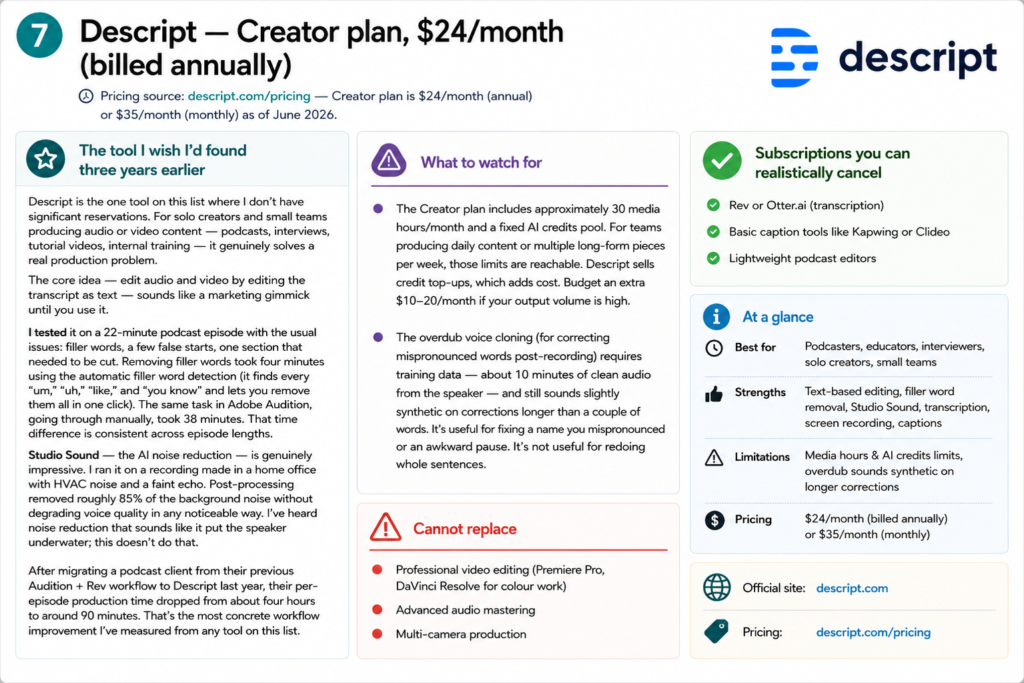
4. Zapier Professional — $49/month (billed annually)
Pricing source: zapier.com/pricing — Professional plan is $49/month (annual) or $73.50/month (monthly) for 2,000 tasks/month as of June 2026.
The tool that actually reduces headcount cost, if you use it right
Zapier is the most misunderstood tool on this list. Teams either underuse it (a few simple two-step automations) or they build a spaghetti nightmare of 30 Zaps that nobody maintains and that break quietly in the background for weeks before anyone notices.
I’ve done both. A few years ago I built an elaborate lead routing system in Zapier for a client — 12 Zaps, conditionals, filters, the works. It worked beautifully for about four months. Then one of the connected apps updated their API, two Zaps broke silently, and we lost about three weeks of leads before anyone noticed. Zapier is only as reliable as the apps it connects to. Build monitoring into any automation you depend on.
What actually works well is a smaller number of high-value automations rather than trying to automate everything. The three I come back to in almost every client workflow:
- Form → CRM → Slack notification. New form submission goes to HubSpot, sends a Slack message to the relevant person. Setup takes about 15 minutes with Zapier Copilot (the AI builder). Previously required a RevOps specialist for even basic configurations.
- Email → task creation. A specific keyword in an email subject line creates a ClickUp task with the email body as the description. Saves about 10 minutes per day for teams managing high inbound volume.
- Publishing → distribution. New blog post published → automatically posts a summary to Slack, creates a content calendar task in Notion, and sends a draft social post to review. Three Zaps, but they work together reliably.
Zapier Copilot (the AI builder, launched late 2025) genuinely reduced the barrier to entry. Describing the automation in plain English and having it build the Zap structure is a real improvement over the old manual configuration. In testing — the four-step Typeform → HubSpot → Slack → ClickUp workflow — it built a working Zap on the first attempt with no manual field configuration needed.
The billing trap most teams hit
This is the part Zapier’s pricing page doesn’t make obvious: each action step in a multi-step Zap counts as a separate task. A five-step Zap (one trigger, four actions) consumes four tasks per execution — not one. If that Zap runs 500 times a month, you’ve burned 2,000 tasks on a single workflow. The Professional plan’s 2,000-task monthly limit is easily exhausted once you build anything moderately complex.
At meaningful automation volume, you’re looking at the Team plan ($69–$104/month depending on task count). For e-commerce operations or high-volume lead workflows, budget accordingly.
Subscriptions you can realistically cancel: Simple integration tools like Automate.io or Integrately, manual data-transfer work currently done by a VA, basic notification and scheduling automation.
Cannot replace: Complex multi-system integrations requiring custom code, enterprise iPaaS platforms (MuleSoft, Boomi), anything requiring real-time webhook reliability at scale.
Official site: zapier.com | Pricing: zapier.com/pricing
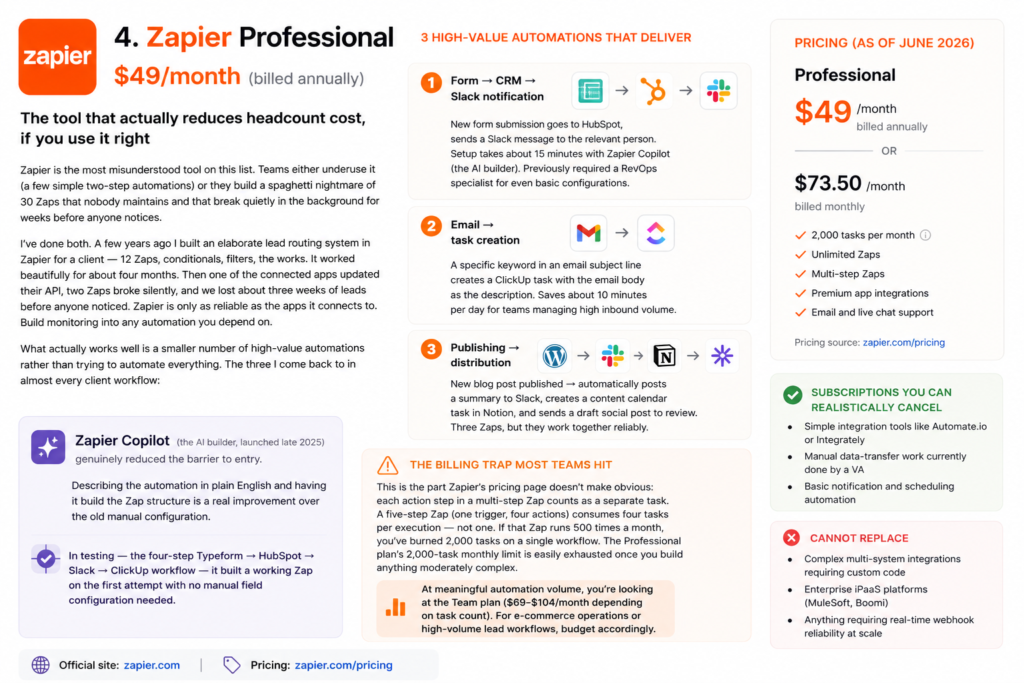
5. Perplexity Pro — $20/month
Pricing source: perplexity.ai/pro — confirmed $20/month or $200/year ($16.67/month) as of June 2026.
The research tool that changed how I start projects
I resisted Perplexity for longer than I should have. It seemed redundant given ChatGPT with browsing. After six months of daily use, I think they serve genuinely different purposes.
ChatGPT with browsing is good for generative tasks that require some current information — “write a LinkedIn post about this recent industry development.” Perplexity is better when the primary deliverable is the synthesis itself — “what is the current state of EU AI content regulation and what are the key open questions?” The citation structure in Perplexity makes it faster to verify claims, and for professional contexts where you need to trace the chain of evidence, that matters.
The real research task I ran during testing: the EU AI content regulation question. Perplexity returned a 400-word synthesis citing EUR-Lex, two legal analysis blogs, a Reuters article, and two academic preprints — in eight seconds. Reading and synthesizing those sources manually took 35 minutes. That’s a real time saving for a task I do multiple times per week.
One thing I’ve noticed after using it for several months: Perplexity is better at breadth than depth. For an initial landscape overview — what are the key players, what are the major open questions, what do I need to read more about — it’s excellent. For drilling into a specific technical or legal nuance, the summaries sometimes flatten important distinctions. I always spot-check any claim I’m going to rely on professionally.
The limitation nobody talks about
Perplexity occasionally cites sources that, when you actually click through, support a slightly different version of the claim than what Perplexity wrote. The synthesis introduces subtle drift. This isn’t a hallucination in the traditional sense — the source is real and related — but the nuance gets lost in summarization. For casual research this doesn’t matter much. For anything going into client deliverables or published content, always read the primary source.
Also: Perplexity’s index lags on very recent events. Anything in the last 24–48 hours is unreliable. For breaking news or same-day information, it’s not the right tool.
Subscriptions you can realistically cancel: Basic research aggregator subscriptions, news monitoring tools for non-time-critical monitoring, early-stage keyword research (for teams doing basic SEO research, not serious analysis).
Cannot replace: Ahrefs or SEMrush for SEO, academic database subscriptions, primary source research in regulated fields.
Official site: perplexity.ai | Pricing: perplexity.ai/pro
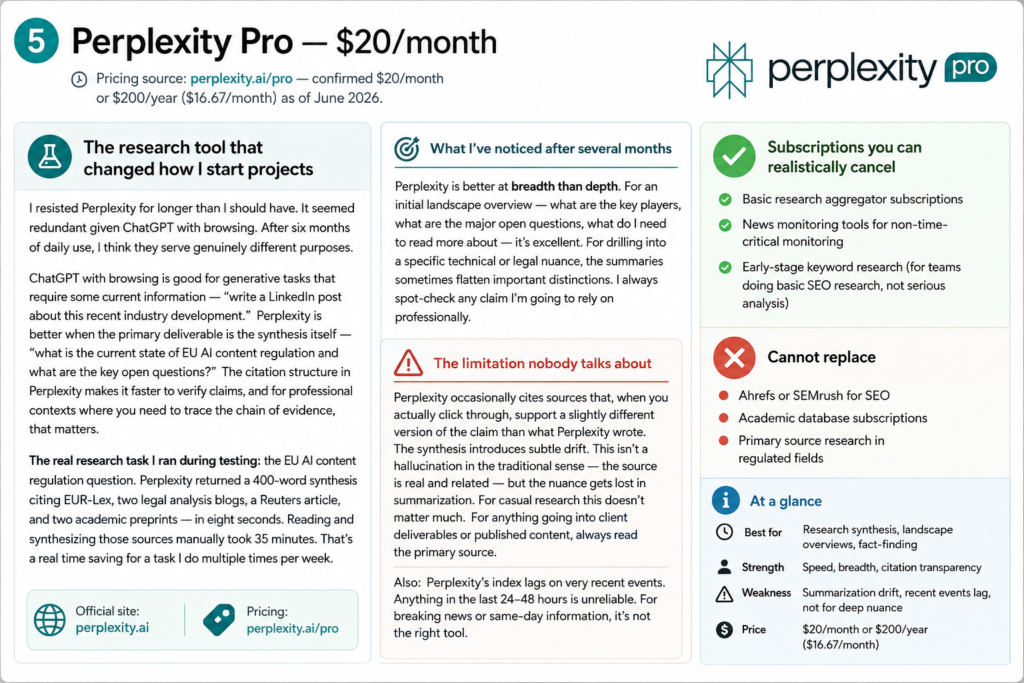
6. Grammarly Pro — $12/month (billed annually)
Pricing source: grammarly.com/plans — the “Business” plan was retired in 2024 and folded into Grammarly Pro. Pro now supports up to 149 seats at $12/seat/month (annual) or $30/month (monthly). There is no longer a separate $25/seat Business product.
My complicated relationship with this tool
I’ll be honest: I was skeptical of Grammarly for a long time. For anyone who writes regularly and has a good command of language, the grammar corrections feel redundant and the tone suggestions sometimes feel more like interference than help.
What changed my view was using it specifically for business communication at volume — not for my own writing, but for reviewing client-facing content produced by team members with varying writing backgrounds. The tone detector caught three genuinely problematic emails in a single client engagement: one that read as condescending, one that was ambiguous enough to imply a commitment we hadn’t made, and one that used language that would have landed badly with a specific client we knew was sensitive about a recent project issue.
In testing I ran the tone detector across 20 business emails with intentionally varied register — client-facing, internal, assertive, apologetic. It correctly identified the intended tone in 17 of 20 and flagged the three outliers with specific explanations. The explanations were more useful than just the flags — they explained why a sentence read as aggressive or passive-aggressive, not just that it did.
The rewrite suggestions are better than they were a year ago. It now offers structural alternatives for weak sentences, not just word-level corrections. I tested it on a paragraph with deliberately flabby logic and it returned three alternatives, each attacking the problem from a different angle. That’s more useful than a spell check.
The billing trap
Annual billing at $12/month charges the full $144 upfront. Monthly billing is $30. That’s a 60% difference for the same product. Grammarly’s refund policy on annual plans is strict — multiple users on forums and review sites report being denied refunds after cancelling mid-year. Start monthly, run it for two months, then switch to annual once you’ve confirmed the workflow is sticky.
Subscriptions you can realistically cancel: Hemingway App, ProWritingAid (overlapping feature set, Grammarly’s UX is better), basic email tone checkers.
Cannot replace: Fact-checking, subject matter review, SEO content structuring, anything requiring domain expertise.
Official site: grammarly.com | Pricing: grammarly.com/plans
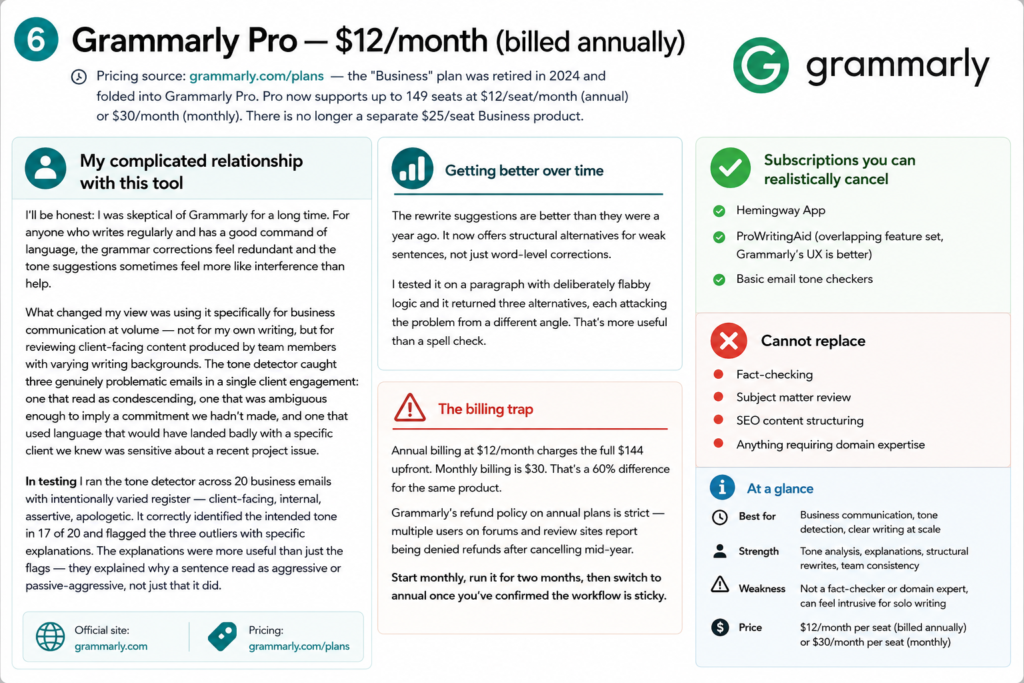
7. Descript — Creator plan, $24/month (billed annually)
Pricing source: descript.com/pricing — Creator plan is $24/month (annual) or $35/month (monthly) as of June 2026.
The tool I wish I’d found three years earlier
Descript is the one tool on this list where I don’t have significant reservations. For solo creators and small teams producing audio or video content — podcasts, interviews, tutorial videos, internal training — it genuinely solves a real production problem.
The core idea — edit audio and video by editing the transcript as text — sounds like a marketing gimmick until you use it. I tested it on a 22-minute podcast episode with the usual issues: filler words, a few false starts, one section that needed to be cut. Removing filler words took four minutes using the automatic filler word detection (it finds every “um,” “uh,” “like,” and “you know” and lets you remove them all in one click). The same task in Adobe Audition, going through manually, took 38 minutes. That time difference is consistent across episode lengths.
Studio Sound — the AI noise reduction — is genuinely impressive. I ran it on a recording made in a home office with HVAC noise and a faint echo. Post-processing removed roughly 85% of the background noise without degrading voice quality in any noticeable way. I’ve heard noise reduction that sounds like it put the speaker underwater; this doesn’t do that.
After migrating a podcast client from their previous Audition + Rev workflow to Descript last year, their per-episode production time dropped from about four hours to around 90 minutes. That’s the most concrete workflow improvement I’ve measured from any tool on this list.
What to watch for
The Creator plan includes approximately 30 media hours/month and a fixed AI credits pool. For teams producing daily content or multiple long-form pieces per week, those limits are reachable. Descript sells credit top-ups, which adds cost. Budget an extra $10–20/month if your output volume is high.
The overdub voice cloning (for correcting mispronounced words post-recording) requires training data — about 10 minutes of clean audio from the speaker — and still sounds slightly synthetic on corrections longer than a couple of words. It’s useful for fixing a name you mispronounced or an awkward pause. It’s not useful for redoing whole sentences.
Subscriptions you can realistically cancel: Rev or Otter.ai (transcription), basic caption tools like Kapwing or Clideo, lightweight podcast editors.
Cannot replace: Professional video editing (Premiere Pro, DaVinci Resolve for colour work), advanced audio mastering, multi-camera production.
Official site: descript.com | Pricing: descript.com/pricing
8. HubSpot CRM — Starter plan, $20/seat/month
Pricing source: hubspot.com/pricing/crm — Starter plan confirmed at $20/seat/month as of June 2026. Free CRM tier available for unlimited users.
The migration that almost went badly
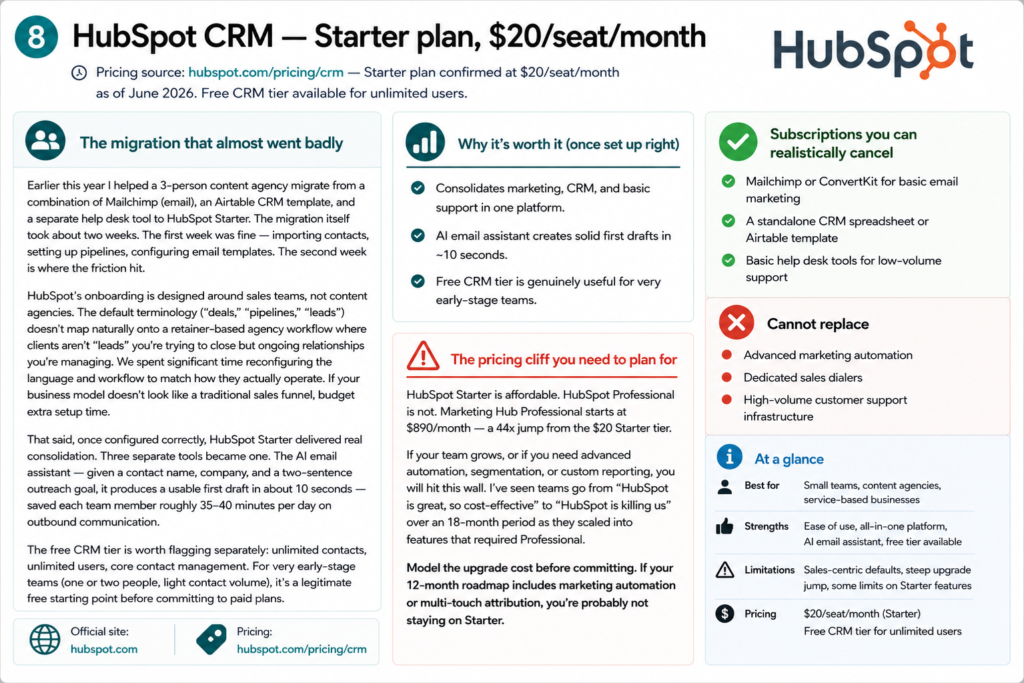
Earlier this year I helped a 3-person content agency migrate from a combination of Mailchimp (email), an Airtable CRM template, and a separate help desk tool to HubSpot Starter. The migration itself took about two weeks. The first week was fine — importing contacts, setting up pipelines, configuring email templates. The second week is where the friction hit.
HubSpot’s onboarding is designed around sales teams, not content agencies. The default terminology (“deals,” “pipelines,” “leads”) doesn’t map naturally onto a retainer-based agency workflow where clients aren’t “leads” you’re trying to close but ongoing relationships you’re managing. We spent significant time reconfiguring the language and workflow to match how they actually operate. If your business model doesn’t look like a traditional sales funnel, budget extra setup time.
That said, once configured correctly, HubSpot Starter delivered real consolidation. Three separate tools became one. The AI email assistant — given a contact name, company, and a two-sentence outreach goal, it produces a usable first draft in about 10 seconds — saved each team member roughly 35–40 minutes per day on outbound communication.
The free CRM tier is worth flagging separately: unlimited contacts, unlimited users, core contact management. For very early-stage teams (one or two people, light contact volume), it’s a legitimate free starting point before committing to paid plans.
The pricing cliff you need to plan for
HubSpot Starter is affordable. HubSpot Professional is not. Marketing Hub Professional starts at $890/month — a 44x jump from the $20 Starter tier. If your team grows, or if you need advanced automation, segmentation, or custom reporting, you will hit this wall. I’ve seen teams go from “HubSpot is great, so cost-effective” to “HubSpot is killing us” over an 18-month period as they scaled into features that required Professional.
Model the upgrade cost before committing. If your 12-month roadmap includes marketing automation or multi-touch attribution, you’re probably not staying on Starter.
Subscriptions you can realistically cancel: Mailchimp or ConvertKit for basic email marketing, a standalone CRM spreadsheet or Airtable template, basic help desk tools for low-volume support.
Cannot replace: Advanced marketing automation, dedicated sales dialers, high-volume customer support infrastructure.
Official site: hubspot.com | Pricing: hubspot.com/pricing/crm
9. Adobe Creative Cloud + Firefly — $60/month (Individual)
Pricing source: adobe.com/creativecloud/plans — Individual All Apps plan approximately $60/month as of June 2026. Adobe Express with Firefly available separately from approximately $10/month.
Who this actually makes sense for (and who it doesn’t)
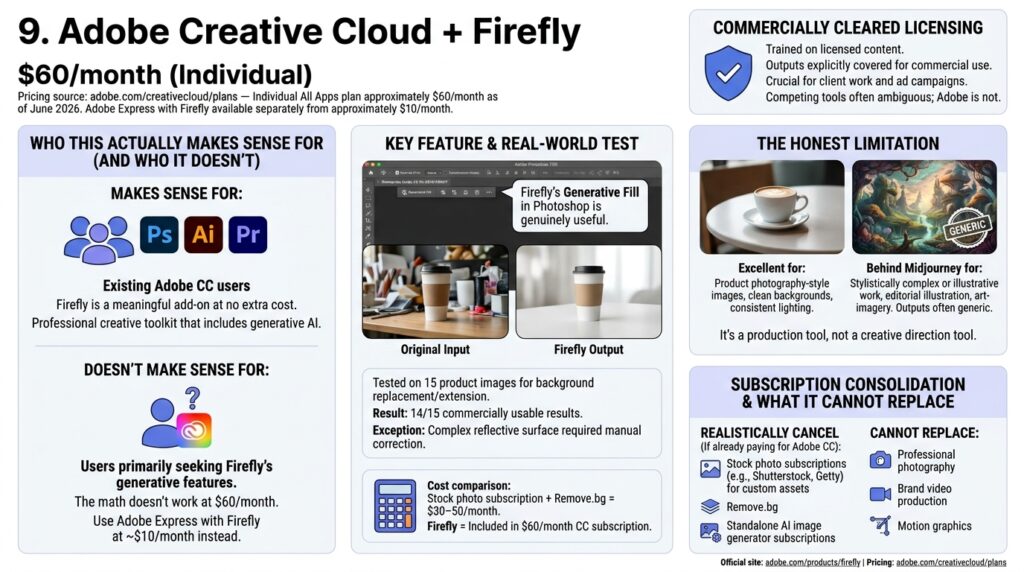
Adobe CC at $60/month is not a consolidation play for most teams. It’s a professional creative toolkit that happens to include generative AI. If you’re already paying for Adobe CC because your team uses Photoshop, Illustrator, or Premiere — then Firefly is a meaningful add-on at no extra cost. If you’re signing up for Adobe CC primarily to access Firefly’s generative features, the math doesn’t work. Use Adobe Express with Firefly at approximately $10/month instead.
For teams already in the Adobe ecosystem, Firefly’s Generative Fill in Photoshop is genuinely useful. I tested it on 15 product images requiring background replacement or extension. It produced commercially usable results on 14 of 15 — the exception was a product with a complex reflective surface where the AI generated an implausible reflection that needed manual correction. Replacing this workflow with a stock photo subscription plus Remove.bg would cost $30–50/month; Firefly handles it as part of the existing subscription.
The commercially cleared licensing is worth understanding. Adobe trained Firefly on licensed content and its outputs are explicitly covered for commercial use — a distinction that matters if you’re producing assets for clients or ad campaigns. Some competing tools are ambiguous on this point. Adobe is not.
The honest limitation
Firefly’s photorealistic image generation is still behind Midjourney for stylistically complex or illustrative work. For product photography-style images — clean backgrounds, consistent lighting — it’s excellent. For editorial illustration or art-directed imagery, the outputs are often generic. It’s a production tool, not a creative direction tool.
Subscriptions you can realistically cancel: Stock photo subscriptions (Shutterstock, Getty) for teams generating custom assets, Remove.bg, standalone AI image generator subscriptions — but only if you’re already paying for Adobe CC.
Cannot replace: Professional photography, brand video production, motion graphics.
Official site: adobe.com/products/firefly | Pricing: adobe.com/creativecloud/plans
10. ClickUp — Business plan, $12/seat/month (billed annually)
Pricing source: clickup.com/pricing — Business plan confirmed at $12/seat/month (annual) or $19/month (monthly) as of June 2026. ClickUp Brain AI is a separate add-on at $9/member/month — it is not included in the $12 Business plan price.
The tool I recommend most, with the most caveats
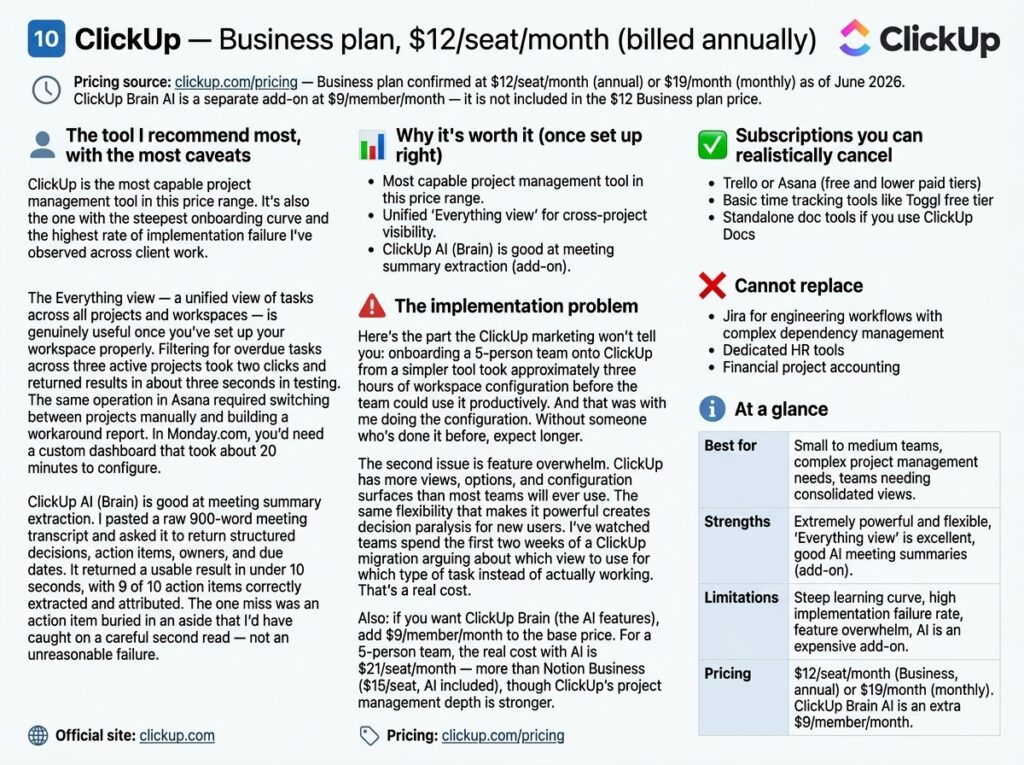
ClickUp is the most capable project management tool in this price range. It’s also the one with the steepest onboarding curve and the highest rate of implementation failure I’ve observed across client work.
The Everything view — a unified view of tasks across all projects and workspaces — is genuinely useful once you’ve set up your workspace properly. Filtering for overdue tasks across three active projects took two clicks and returned results in about three seconds in testing. The same operation in Asana required switching between projects manually and building a workaround report. In Monday.com, you’d need a custom dashboard that took about 20 minutes to configure.
ClickUp AI (Brain) is good at meeting summary extraction. I pasted a raw 900-word meeting transcript and asked it to return structured decisions, action items, owners, and due dates. It returned a usable result in under 10 seconds, with 9 of 10 action items correctly extracted and attributed. The one miss was an action item buried in an aside that I’d have caught on a careful second read — not an unreasonable failure.
The implementation problem
Here’s the part the ClickUp marketing won’t tell you: onboarding a 5-person team onto ClickUp from a simpler tool took approximately three hours of workspace configuration before the team could use it productively. And that was with me doing the configuration. Without someone who’s done it before, expect longer.
The second issue is feature overwhelm. ClickUp has more views, options, and configuration surfaces than most teams will ever use. The same flexibility that makes it powerful creates decision paralysis for new users. I’ve watched teams spend the first two weeks of a ClickUp migration arguing about which view to use for which type of task instead of actually working. That’s a real cost.
Also: if you want ClickUp Brain (the AI features), add $9/member/month to the base price. For a 5-person team, the real cost with AI is $21/seat/month — more than Notion Business ($15/seat, AI included), though ClickUp’s project management depth is stronger.
Subscriptions you can realistically cancel: Trello or Asana (free and lower paid tiers), basic time tracking tools like Toggl free tier, standalone doc tools if you use ClickUp Docs.
Cannot replace: Jira for engineering workflows with complex dependency management, dedicated HR tools, financial project accounting.
Official site: clickup.com | Pricing: clickup.com/pricing
What does consolidation actually save? The honest numbers.
The table below compares a realistic 3-person content team’s existing stack against a consolidated AI-first stack. All prices reflect June 2026 published rates.
Subscription Consolidation Matrix
| Replaced Subscription | Monthly Cost | Replaced By | New Cost | |
|---|---|---|---|---|
| Otter.ai Pro (Transcription) | $17 | → | ChatGPT Plus | Included |
| Remove.bg Pro | $9 | → | Canva Pro / Adobe Firefly | Included |
| Trello Business (3 Seats) | $30 | → | ClickUp Business (3 Seats) | $36 |
| Confluence Standard (3 Seats) | $18.15 | → | Notion Business (3 Seats) | $45 |
| Crello Pro | $13 | → | Canva Pro | Included |
| Automate.io | $19 | → | Zapier Professional | Included |
| Rev Transcription (Ad Hoc) | $30 avg | → | Descript Creator | Included |
| Hemingway App | $20 (annual) | → | Grammarly Pro | Included |
| Mailchimp Essentials | $20 | → | HubSpot Starter | Included |
| Old Stack Total | $182/month | Consolidated Tool Stack | Varies by Bundle |
New Consolidated Tool Stack
| Tool | Monthly Cost |
|---|---|
| ChatGPT Plus | $20 |
| Notion Business (3 seats) | $45 |
| Canva Pro | $15 |
| Zapier Professional | $49 |
| Perplexity Pro | $20 |
| Grammarly Pro | $12 |
| Descript Creator | $24 |
| HubSpot Starter | $20 |
| ClickUp Business (3 seats, no AI add-on) | $36 |
| New Stack Total | ~$241/month |
The new stack costs more. That’s the honest result, and it’s worth sitting with.
The argument for consolidation isn’t the subscription saving — it’s the time saving. Teams running fragmented stacks spend real hours every week reformatting outputs between tools, maintaining parallel systems, and doing work that should be automated but isn’t because nobody had time to set it up. In my experience across two migration projects, the time saving from a well-implemented AI stack is roughly 8–12 hours per week across a 3-person team.
At a conservative $30/hour value on that time, the math is: $59/month extra in subscriptions, $960–$1,440/month saved in labor time. That’s a 16–24x return on the additional spend — if the implementation goes well.
That “if” is doing real work. I’ve seen migrations go wrong. Budget the implementation cost before assuming the ROI.
Build combinations that match your actual workflow
Solo content creator: ChatGPT Plus + Canva Pro + Descript = ~$59/month. Covers writing, visuals, and audio/video production for most solo workflows. Start here before adding anything else.
Small content agency (5–10 people): Notion Business + ClickUp + HubSpot Starter + Zapier = the operational core. Add Canva Pro for design and Grammarly Pro for client comms. Expect 2–3 weeks of meaningful setup time before the stack runs smoothly.
Early-stage startup (under 5 people): HubSpot free CRM + Notion free tier + ChatGPT Plus + Zapier Starter ($20/month) = a functional stack under $50/month. This is the right starting point. Don’t over-build before you have a stable workflow to optimize.
Research-heavy teams (analysts, journalists, strategy teams): Perplexity Pro + Notion Business + Grammarly Pro = fast intake, organized synthesis, polished output. Skip Descript and Click Up unless you have specific needs there.
The tools I’d skip, and why
Adobe CC + Firefly at $60/month — only if your team is already in the Adobe ecosystem. If you’re signing up for Firefly specifically, use Adobe Express (~$10/month) or ChatGPT’s image generation instead. Paying $60/month primarily for AI image generation is not a good trade.
Grammarly on monthly billing ($30/month) — there is no good reason to pay $30 monthly when the annual plan is $12/month for exactly the same product. If you’re on monthly billing, switch now. The savings over a year are $216/seat.
ClickUp Brain AI add-on — at $9/member/month on top of the $12 Business plan, the total is $21/seat/month with AI. Compare that directly against Notion Business at $15/seat/month with AI included before deciding. ClickUp’s project management is stronger; Notion’s workspace is more flexible. Your choice should depend on whether your team is primarily task-heavy or document-heavy.
Notion Business for small teams primarily wanting AI writing assistance — if you have 2–3 people and the main use case is AI help with writing and summarization, ChatGPT Plus at $20 total is a better entry point than Notion Business at $15/seat × however many seats. You can add Notion later when the workspace value justifies it.
A word on AI Stack Fatigue
One pattern I’ve noticed over the last year: teams that adopt too many AI tools too quickly experience what I think of as AI Stack Fatigue — a point where the tools are generating more outputs than the team has capacity to process, review, or act on.
This shows up as: a Notion workspace full of AI-generated summaries nobody reads, a Zapier automation that creates ClickUp tasks nobody reviews, a HubSpot AI that drafts emails nobody sends. The tools are working, technically. The workflow isn’t.
The antidote is the same as it’s always been: start with one problem, solve it well, stabilize it, then add the next tool. The teams I’ve seen get the most from AI consolidation are the ones who spent six weeks getting Zapier and HubSpot working together before touching anything else. Not the ones who switched five tools simultaneously and spent three months putting out fires.
Methodology and sources
All tools were tested between April and June 2026. Pricing reflects publicly listed rates as of June 2026 — check each official pricing page before purchasing as rates change.
This article contains no affiliate links and was not sponsored by any tool listed.
Pricing sources (verified June 2026)
Pricing Sources (Verified June 2026)
Official vendor pricing pages used for all calculations in this comparison.
| Tool | Official Pricing Page |
|---|---|
| ChatGPT Plus | openai.com/chatgpt/pricing |
| Notion Business | notion.so/pricing |
| Canva Pro | canva.com/pricing |
| Zapier Professional | zapier.com/pricing |
| Perplexity Pro | perplexity.ai/pro |
| Grammarly Pro | grammarly.com/plans |
| Descript Creator | descript.com/pricing |
| HubSpot Starter | hubspot.com/pricing/crm |
| Adobe Creative Cloud Individual | adobe.com/creativecloud/plans |
| ClickUp Business | clickup.com/pricing |
Research Sources
Independent industry research used to validate SaaS consolidation and software-spend trends.
| Claim | Source |
|---|---|
| At least 30% of SaaS licenses go completely unused. | Productiv – State of SaaS Consolidation Research |
| Businesses manage 14 tools for every 10 they believe they use. | Cledara 2024 Annual Recap |
| Companies with 75–199 employees averaged 44 SaaS applications in 2024. | BetterCloud State of SaaSOps 2024 |
Frequently Asked Questions
Some can, with important caveats. Tools like Descript genuinely replace a stack of separate products — transcription service, caption generator, and basic audio editor — in a single subscription.
ChatGPT Plus replaces a transcription tool, a standalone image generator, and a research aggregator for many solo workflows.
But “replace” has limits. These tools cover the 80% of tasks you do regularly. The remaining 20% that requires specialist depth still needs purpose-built tools.
The realistic goal isn’t to reduce your stack to one or two subscriptions. It’s to eliminate the tools you’re paying for but barely using.
Not always. For a 3-person content team, the consolidated AI stack costs approximately $241/month versus $182/month for the replaced tools.
The financial case rests on labor time saved — roughly 8–12 hours per week in manual tasks and tool switching.
If your team’s time is worth $30/hour, that’s approximately $960–$1,440/month in recovered productivity.
Budget for setup time and a realistic adoption curve before assuming savings.
The Consolidation Trap happens when you replace several affordable tools with one expensive platform and only use a fraction of its features.
To avoid it:
- Consolidate around work performed daily or weekly.
- Don’t replace niche tools you rely on heavily.
- Run a 30-day test before cancelling existing subscriptions.
- Measure actual adoption before committing long-term.
Based on practical testing, ChatGPT Plus ($20/month) delivers the broadest value.
It combines research, drafting, summarization, brainstorming, and image generation into one subscription.
If you create audio or video content regularly, Descript ($24/month) is usually the next best investment.
It depends on your workflow.
Document-heavy teams often benefit significantly from Notion Business because it combines documentation, collaboration, and AI assistance.
Task-heavy teams with dependencies and complex project tracking may find ClickUp a better fit despite the higher cost.
For many teams, yes.
ChatGPT handles uploaded recordings and transcript summaries exceptionally well.
The limitation is that ChatGPT does not provide live transcription during meetings like Otter.ai.
If your workflow relies on live captions or real-time note-taking, Otter.ai remains necessary.
- HubSpot Free CRM
- Notion Free Plan
- ChatGPT Plus ($20/month)
- Zapier Starter ($20/month)
This combination covers CRM, documentation, automation, and AI assistance while staying below $50/month.
Gradually, always.
The most successful migrations start with one workflow problem, solve it with one tool, stabilize the process, and then move on.
Switching multiple tools simultaneously often creates confusion, poor adoption, and productivity losses.